Google Slides is one of the best presentation tools that I have used. It has come a long way from when it first came out because Google continues to add updated features to it. While the collaborative features of allowing multiple editors to work on a presentation together is great, there is so much more you can do with Google Slides. The four important tips below will enable you to tap into the potential of Google Slides while also allowing you to create engaging presentations that will amaze your audience.
Tip #1: Use a Template as Your Starting Point

If you want to get your message across, you must first be able to captivate your audience. Part of that captivation is realizing that we are all visual beings; therefore, an effective presentation design is as important as the message itself. If you are stuck trying to come up with a creative look for your slideshow, then enlist the help of slide templates. Templates can serve as your starting point or as an inspiration for what you want to create yourself.
Tip #2: Insert Videos Directly into Your Google Slideshow
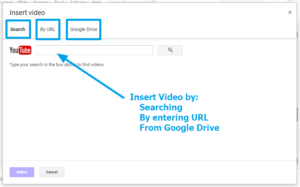
There’s a lot to be said for having videos in your slideshows. It can keep presentations interesting, offer additional learning experiences, and give your voice a break. You can insert videos into Google Slides two different ways: through YouTube or through your Google Drive.
To insert a video, make sure that you have the YouTube URL or that it is already uploaded to your Google Drive. Then navigate to the Insert menu and select Video. A box will open with separate tabs to “search” YouTube, link directly through a YouTube URL, or navigate your Google Drive files. Simply enter the URL or select the file you want to link to your slideshow, and then press Select to insert it into your slide.
To see how to enhance your presentation with more than just video, read the Fabulous Presentations with Google Slides blog.
Tip #3: Use Slides Q&A to Interact with Your Audience
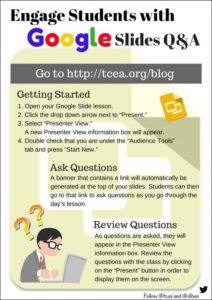
While presenting, allow your audience to ask questions through Slides Q&A. Being interrupted to answer questions while you are presenting can make you, the presenter, lose your train of thought. Thankfully, Slides Q&A offers a great solution to that.
With the Slide Q&A feature, your audience can submit questions using a specific link you give them. The questions will be visible to both you and the audience. The audience can vote up questions that they are interested in, ensuring that you answer higher priority questions first. By simply submitting questions from any device, your audience will be more involved in the presentation. Furthermore, they will feel like they are getting real-time feedback.
The Q&A feature is accessible through the Presenter View. To see how to get started using this wonderful feature, read the Engage Students with Google Slides Q&A blog.
Tip #4: Present with Your Phone
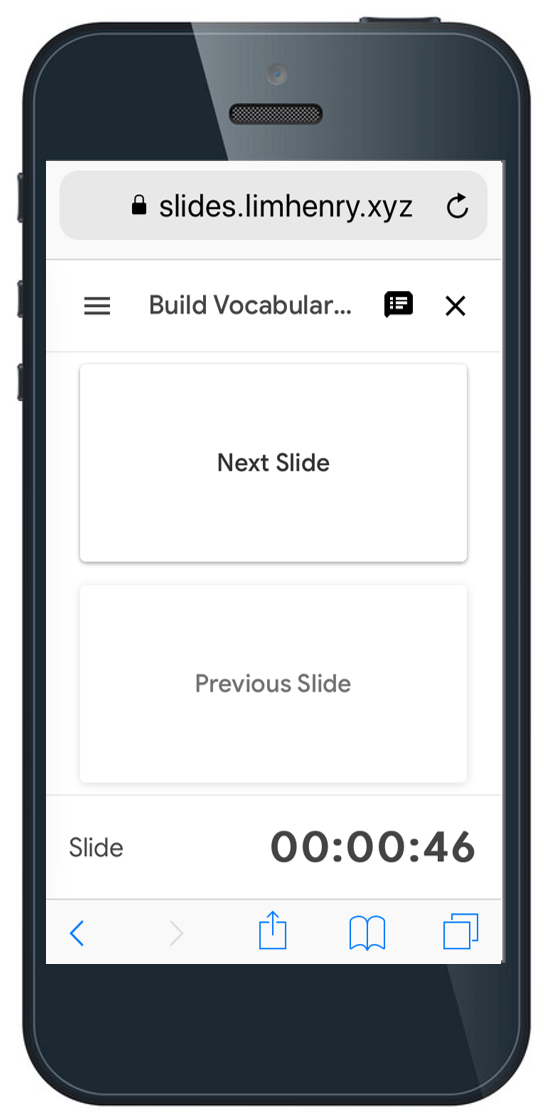
Thanks to the Remote for Slides Chrome extension, you don’t have to buy a presentation clicker. In addition, you don’t have to be tethered to your laptop while you present. The extension works in collaboration with your Google Slide presentation so you can walk around the room with your phone and still advance your slides. If you included talking points in the slide notes section, you can view these on your phone as well. Another thing to note is that a timer is also available to help you keep track of time. For step-by-step instructions on how to use the Remote for Slides Chrome extension, check out the Use Your Phone as a Google Slide Presentation Remote blog.
Ready to Present?
If you have an upcoming presentation, try some of the tips mentioned above to take your presentation to the next level. Your presentations will surely catch the eye of every audience member!
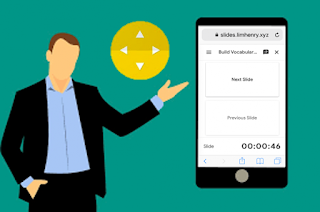
At the recent Elementary Technology Conference, I was able to use my phone as a remote to control my Google Slide presentations. Thanks to the Remote for Slides Chrome extension, I wasn’t tethered to my laptop. I was able to walk around the room with my phone and advance my slides as I presented. When presenting, why be stuck in the front of a room when you don’t have to be?
Features of the Remote to Slides Extension
The free Remote for Slides extension (@remoteforslides) was created by Henry Lim, a Google Developer Expert in Web Technologies. Some of the features on the extension include:
- Move Slides Forwards or Backwards: You can move your slides forward or backward by tapping a button.
- Timer: A timer allows you to look at the time for which you have been speaking for. This is critical since you don’t want your presentation to go over its scheduled time.
- Speaker Notes: Speaker notes allow you to refer to your notes during your presentation. This really helps you remember that important information you are trying to convey to your participants.
Installing the Remote for Slides Extension
To install the extension:
- Launch the Chrome browser and go to the Remote for Slides Chrome extension.
- Click the Add to Chrome button.
- Click Add extension in the confirmation box.
- The button changes to Checking. Then it changes to Added to Chrome when the installation is complete.
Using Remote for Slides
To begin controlling your presentations from your phone:
- Open your presentation in Google Slides.
- On the top right, click the "Present with Remote" button.
- Wait until the presentation is fully loaded.
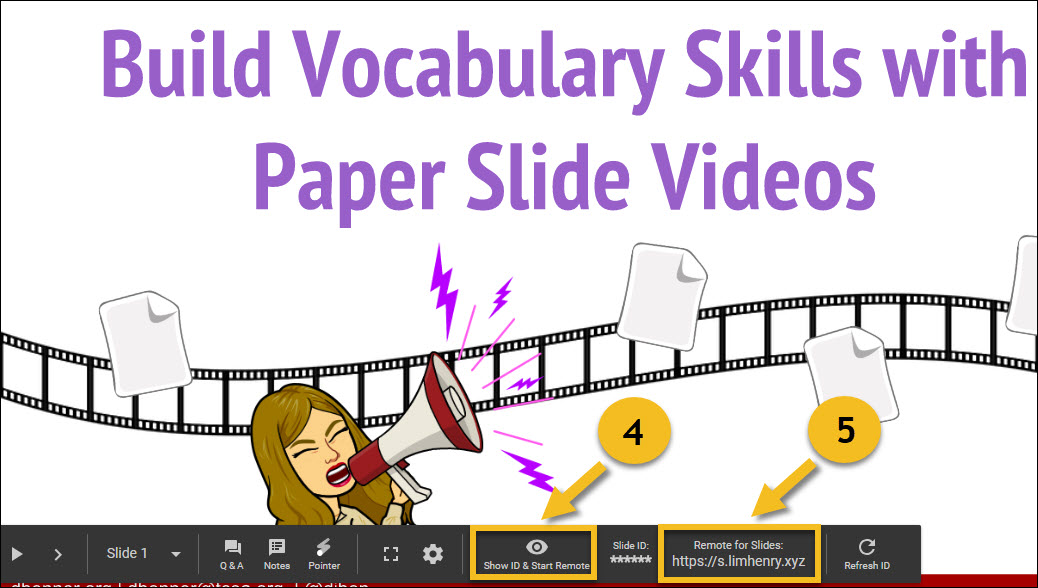
- Click on the "Show ID & Start Remote" button to view the 6-digit code.
- Open http://s.limhenry.xyz on your phone and enter the code that appears on the page.
- Press the Connect button and you are ready to go! Your phone is now a remote, with two large buttons to move back and forth between slides.
Try It On Your Phone
The next time you have a presentation, try using your phone as the remote. It works like a charm. Also, don't forget to check out Fabulous Presentations with Google Slides to learn how to create more moving and engaging presentations.